
Virtual staging
AI virtual staging: a practical guide to preparing property photos
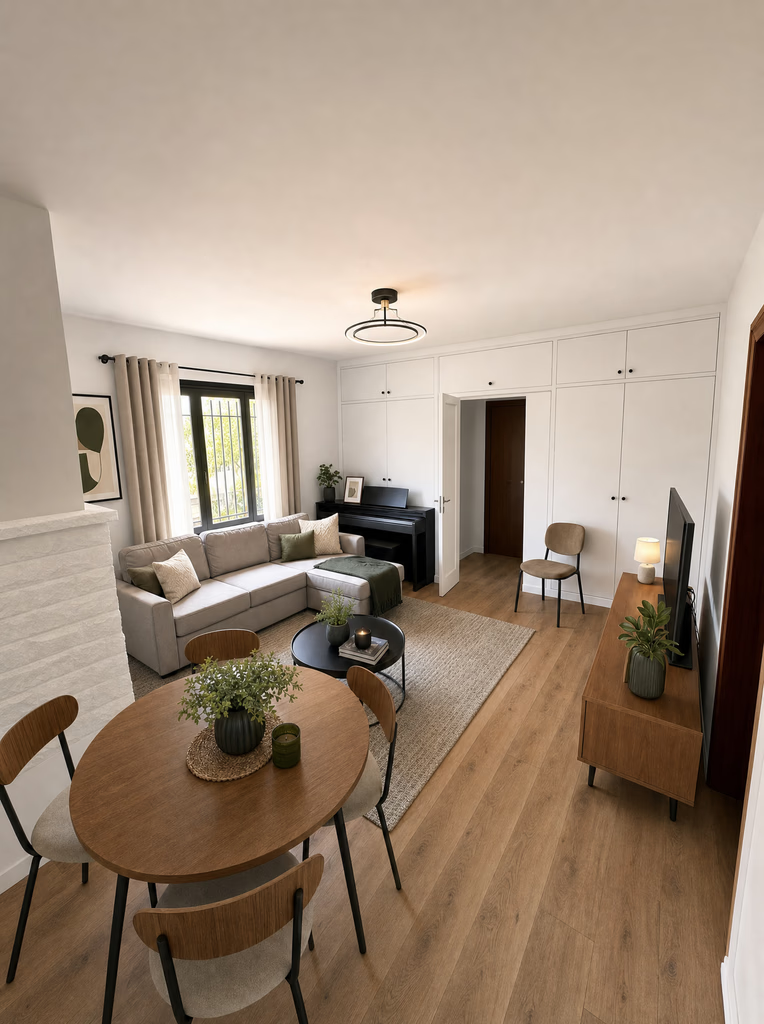
An empty room shows its walls and windows, but leaves the furniture arrangement to the viewer’s imagination. AI virtual staging adds a proposed interior to a real photograph. A useful result should communicate a possible use of the room while keeping its existing architecture understandable.
What is AI virtual staging?
Virtual staging creates a furnished version of a property photograph without physically moving furniture into the room. With AI, the proposal can include furniture, finishes and a decorative style. It is a visualization of a possible interior, rather than a record of what is currently installed. Keep the original photograph alongside the proposal so the viewer can compare them.
Start with a photograph that explains the room
Choose a sharp photograph with an unobstructed view of the floor, walls and openings. A corner view can help show how two walls meet and where furniture might fit. Avoid heavily distorted images and check that daylight or lamps do not obscure important features. If the room is already furnished, decide which pieces should stay and which should be removed before creating the proposal.
Choose a purpose before choosing a style
Decide how the room will be used: a living room for conversation, a bedroom with storage, or a workspace with a clear desk area. Then select a style that supports that purpose. A restrained palette can make it easier to compare furniture arrangements. Changing the style, flooring and layout at once makes it harder to understand which decision improved the result.
Give the AI dimensions and a furniture layout
A photograph alone does not describe every dimension. In Lumo Stage, you can define the room and style, add real dimensions in the 3D spatial editor, and position furniture before rendering. For a living room, start with the sofa, place the table and then consider the route between the entrance and the seating area. This gives the generation a planned composition to work from.
Review the proposal against the original
Compare doors, windows, wall boundaries and fixed features with the source photo. Check whether furniture looks plausible in scale and whether it appears to block access. Inspect edges and reflections for visual inconsistencies. A convincing image is still not a measured construction plan: use actual measurements before buying furniture or making physical changes.
Build a repeatable workflow for each property
Lumo Stage organizes properties as Projects and rooms as Spaces. Keep the source photo and render versions associated with the same room, then compare alternatives rather than overwriting your starting point. Download the chosen image and clearly identify it as a virtual staging proposal when presenting it. A useful next experiment is to change only the arrangement while keeping the same style.
Can I stage a room that already has furniture?
Yes. Lumo Stage can visually remove existing furniture before you prepare a new proposal. Review the emptied image before proceeding, especially around areas previously hidden by large pieces.